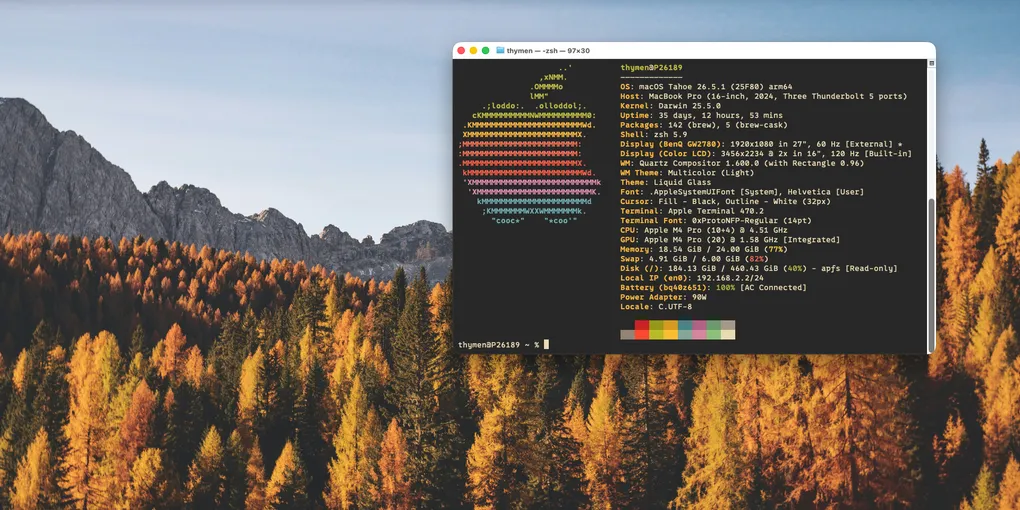
A few tools that will make MacOS more useful
There are situations where you can not use your preferred operating system. Your employer might only offer laptops with Windows or MacOS. In those cases I personally prefer MacOS over Windows, because it is Unix based and simply looks better (in my opinion)
You still might want some of the tools and functionality that Linux-based operating systems offer. This post will give some tips on how to get some of that functionality on MacOS.
The first thing you can do to make MacOS function a little bit more like a Linux distro, is to install a package manager. Brew is the most popular package manager for MacOS and while it is not as good as something like pacman for Arch or Artix, it still is far better than no package manager at all. More information on brew
You can install brew with the following command:
/bin/bash -c "$(curl -fsSL https://raw.githubusercontent.com/Homebrew/install/HEAD/install.sh)"
The next thing that will make MacOS better to use, is to install a better launcher to replace the default cmd + space launcher.
I use RayCast, because it is extensible and easy to use. You can use brew to install RayCast:
brew install --cask raycast
There are a few settings you should change in RayCast. With RayCast open press cmd + , to open the settings.
then go to the settings for extensions and disable the window management extension.
While you are in the settings you can also change the default hotkey for RayCast to cmd + space to replace the default MacOS launcher.
The next application I like to install in MacOS is called Rectangle. This enables window management with hotkeys and easier window tiling. It is not a full tiling window manager like DWM, but it is still nice to be able to use shortcuts to organize windows.
You can use RayCast to manage brew applications to install new ones. Open RayCast and enable Brew in the settings.
Then type brew into RayCast and use the Brew search function to search for Rectangle.
You can also download Rectangle here.
When Rectangle is installed you can use numerous hotkeys to move and resize windows.
These are just a few tools that will make MacOS better to use. By no means is this post exhaustive, but it is a starting point. If you want a more in-depth tutorial on how to make MacOS feel like Linux, check out this blogpost by Jack Allan Hyde .